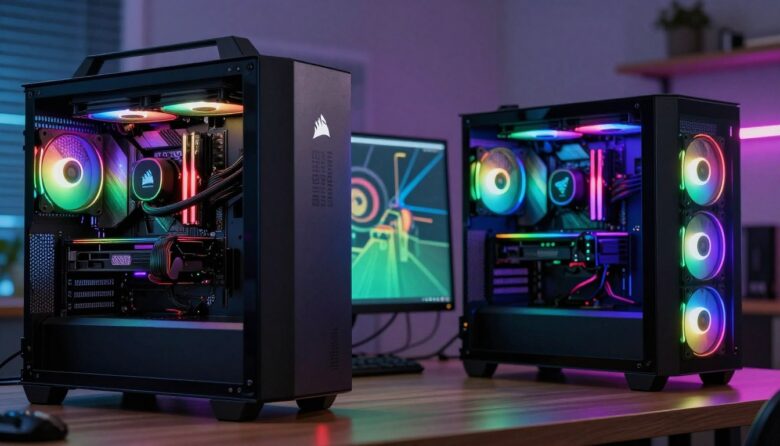
I’ve spent years testing gaming peripherals, and picking the right keyboard or lighting setup can change how you play and work. Two major brands lead the market, each with distinct software and hardware approaches that shape the user experience.
One brand is known for rugged build quality and metal frames that feel rock solid. The other often introduces trend-setting tech popular with esports players and early adopters.
In this piece I’ll compare software integration, RGB customization, peripheral features, and real-world performance. My goal is a clear verdict that helps you choose the right keyboard and ecosystem for your build.
Key Takeaways
- I’ll evaluate software stability and customization options for gamers and power users.
- Build quality and product durability can tilt decisions for long-term users.
- Lighting and rgb control matter, but performance and features decide most setups.
- Both brands offer strong products; your desktop needs determine the right keyboard.
- My verdict focuses on real gaming tests and daily use to guide your purchase.
Understanding the Corsair iCUE vs Razer Chroma Ecosystems
I break down how each ecosystem handles lighting, profiles, and system-wide control so you can pick what fits your desk.
Razer’s Chroma lighting system shines for gameplay-driven effects. It excels at syncing dynamic RGB with in-game events, which many gamers love for immersion.
The other ecosystem centers on unifying control through one powerful hub. Its icue software ties peripherals, fans, and RAM together so users can manage components from a single place.
Both brands offer strong customization options, but they target different users. One favors flashy, reactive lighting for players. The other prioritizes broad device integration for builders.
- Chroma strength: in-game, event-driven lighting.
- iCUE strength: system-wide component and peripheral control.
- Common ground: deep rgb and profile customization for most products.
| Feature | Gaming-focused | System integration | User control |
|---|---|---|---|
| Lighting effects | Dynamic, game-synced | Extensive across components | High |
| Software hub | Game-plugin oriented | Unified device profiles | Centralized |
| Best for | Competitive gamers | PC builders and multitaskers | Both |
My verdict often comes down to whether you want flashy gameplay sync or broader hardware integration. Both ecosystems shape how you manage peripherals and lighting, so pick the one that fits your daily use.
Comparing Build Quality and Hardware Design
A keyboard’s metal frame and the feel of its keys define daily comfort and longevity.
Aluminum Frames and Durability
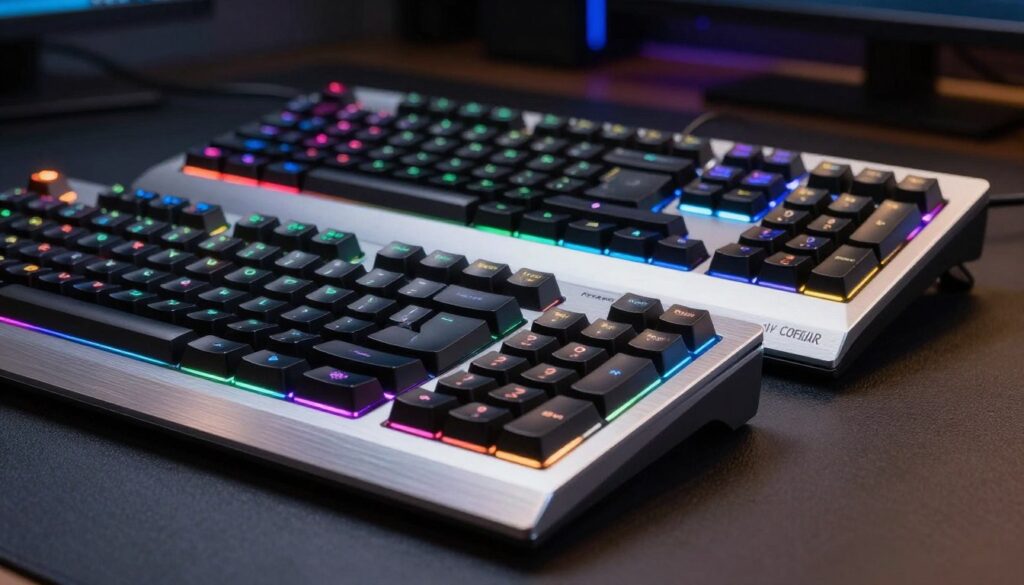
I prefer keyboards with aircraft-grade aluminum. The brushed aluminum finish feels sturdy and premium. It resists flex during intense gaming sessions and long typing stints.
The Corsair K70 models often feature that knurled aluminum volume wheel and dedicated media keys. That hardware adds real-world convenience during play or work.
Proprietary Switches vs Cherry MX
Switch choice matters. Many razer keyboards use proprietary mechanical switches that deliver a unique tactile profile. Other keyboards lean on cherry switches for consistent, reliable feedback.
In my testing, cherry switches offer predictable actuation and long life. That consistency helps both typing and gaming performance.
- Build quality: aluminum frames feel more durable than plastic trays.
- Keys & switches: proprietary options add character; cherry switches add consistency.
- Peripherals: mice and keyboards built well survive daily use.
| Feature | Aluminum Models | Plastic/Standard |
|---|---|---|
| Durability | High | Medium |
| Typing feel | Stable, premium | Variable |
| Media controls | Often present (volume wheel) | Basic or absent |
My verdict: I give a slight edge to keyboards with aluminum builds and proven cherry switches. They balance quality and performance for most users.
Deep Dive into Software Customization and Integration
A polished software suite can make or break the way peripherals work together. I look at how each hub handles profiles, lighting, and hardware control so you can pick the best fit for your rig.
Syncing Challenges and Cross-Platform Compatibility
Profile management matters. I find one app offers cloud storage and easy profile switching, which helps when I move between rigs or tournaments.
That same app can be heavy on system resources on lower-end gaming PCs. Still, it shines for quick profile swaps and intuitive layout controls.
The other suite gives deep component control and rich lighting tools. It lets users create complex rgb scenes that span fans, memory, and peripherals.
“Achieving a perfect typing experience often requires fine-tuning software settings.”
- Pros: robust customization options and unified hardware control.
- Cons: occasional trouble syncing non-native motherboards or third-party parts.
- Verdict: choose cloud-based convenience for profile portability or deep control for system-wide lighting and features.
| Aspect | Cloud profiles | Component control |
|---|---|---|
| Ease of use | High | Medium |
| Lighting customization | Good | Very detailed |
| Cross-device sync | Strong | Can be tricky |
Performance and Typing Experience for Gamers
I test how sensors, switches, and software affect both fast play and long typing runs.
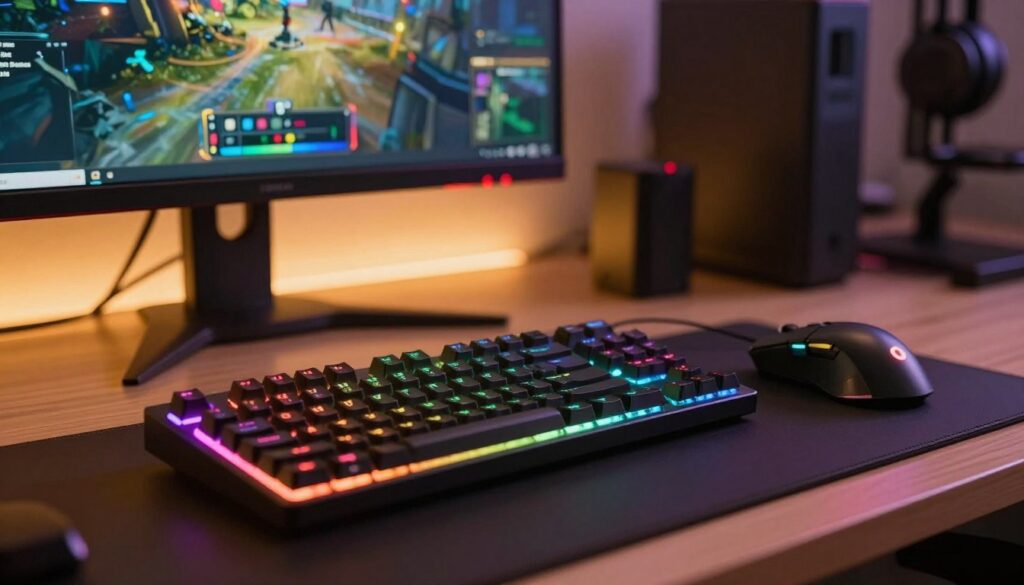
The mice matter. I note that one model uses the Focus+ Optical Sensor for extreme accuracy in tight fights. The other relies on PixArt sensors that track with high fidelity during long gaming sessions.
The keyboard feel also changes outcomes. The BlackWidow’s razer proprietary mechanical switches give a tactile snap that some players love. By contrast, many keyboards often feature cherry switches that deliver consistent feedback for heavy typing.
Software ties it all together. Good software keeps profiles, macros, and lighting in sync. It also lets me switch between media keys and gaming modes without breaking flow.
“The right combo of sensor and switches makes small inputs count under pressure.”
- My pick for media control: the K70 layout makes volume and media adjustments simple during play.
- For pure speed: the Focus+ sensor edges out in competitive matches.
- For typing: cherry switches feel more reliable over long sessions.
| Item | Strength | Best use |
|---|---|---|
| Mice (Focus+/PixArt) | Tracking precision | Competitive gaming |
| Keyboards (proprietary/cherry) | Feel and consistency | Typing and gaming |
| Software | Profile and media control | Everyday users |
Final Verdict on Choosing Your RGB Ecosystem
Choosing the right RGB ecosystem depends on whether your priority is component integration or in-game effects.
I find that corsair icue delivers superior integration for users who want unified control over RAM, cooling, and other internal parts. It gives a clear slight edge when your build already uses matching components.
Razer Synapse still wins for gamers focused on polished software and game-linked lighting. That suite shines for dynamic rgb effects, fast profile swaps, and aggressive styling.
For the right keyboard, pick the K70 if you value build quality and Cherry MX feel, or the BlackWidow if you prefer proprietary keys and a bold look. Both brands offer strong products; your setup and priorities decide the final verdict.
FAQ
Which RGB ecosystem offers better lighting customization for keyboards and mice?
Both ecosystems provide deep lighting control, per-key effects, and profile management. I find one leans toward granular macro and hardware profile options while the other focuses on intuitive preset scenes and seamless game integrations. Your choice should hinge on whether you prefer fine-tuned control or simpler, faster setup for gaming sessions.
Do aluminum-framed keyboards feel more durable during heavy use?
Yes. I notice aluminum frames add rigidity and a premium weight that reduces flex during intense typing or marathon matches. Keyboards with metal top plates often feel sturdier and give a more solid, long-lasting impression compared with plastic-only builds.
How do proprietary switches compare to Cherry MX and other mechanical switches?
Proprietary switches often aim to deliver a distinct actuation or sound signature and can integrate features like optical actuation. Cherry MX and similar third-party mechanical switches have a long track record for consistency and aftermarket options. I weigh typing feel, durability, and the availability of switch replacements when choosing.
Is the software easy to use for setting up macros, profiles, and lighting layers?
Software usability varies. One platform offers a streamlined interface that helps me set up lighting scenes quickly, while the other gives advanced macro and hardware profile controls that take longer to master. If I plan to create complex macros and cross-device profiles, I tolerate a steeper learning curve.
Can I sync lighting across different brands of peripherals and components?
Syncing across brands often requires compatible gear or third-party bridges. I usually get the cleanest synchronization when I stick to one ecosystem’s peripherals and supported motherboard lighting. Mixing brands can work, but it demands extra setup and sometimes compromises on effects.
Which ecosystem is better for gamers focused on performance and low-latency input?
Both platforms support high-performance peripherals with low-latency switches and wired connectivity. I prioritize switch type, polling rate, and software background load. The actual in-game advantage is subtle; the right keyboard for me is the one that complements my playstyle and feels consistent under fast keystrokes.
Are there notable differences in build quality between high-end models like the K70 and BlackWidow lines?
High-end models from major brands target premium materials, stabilized keycaps, and robust frames. I expect tight tolerances, quality stabilizers, and long-lasting key switches in flagship models. Differences become personal: one brand might feel firmer in the wrist rest, another might prioritize a firmer aluminum top plate.
How reliable is profile switching and on-board memory for tournaments or LAN play?
On-board memory is excellent for tournaments because it stores lighting, macros, and keybinds without relying on background software. I always test profile switching before an event to ensure my saved profiles load correctly and that the keyboard’s hardware mode behaves the way I trained it to.
What should I check when choosing between similar keyboards from these ecosystems?
I compare switch options, keycap quality, wrist support, software features, and connectivity. Also test typing feel and noise level. Consider extras like dedicated media controls, USB passthrough, and detachable cables. Those small details shape daily comfort and long-term satisfaction.
Do both ecosystems support third-party integration with games and RGB-enabled components?
Yes, both support game-driven lighting effects and integrations with select third-party devices, but support breadth differs by title and hardware vendor. I recommend checking compatibility lists and community forums to confirm whether your favorite games and PC components are supported before committing.

Adrian Voss is an RGB lighting specialist and tech writer focused on customization, performance, and smart lighting systems. He shares hands-on insights, reviews, and setup guides to help users take full control of their RGB controllers and create immersive, personalized environments.