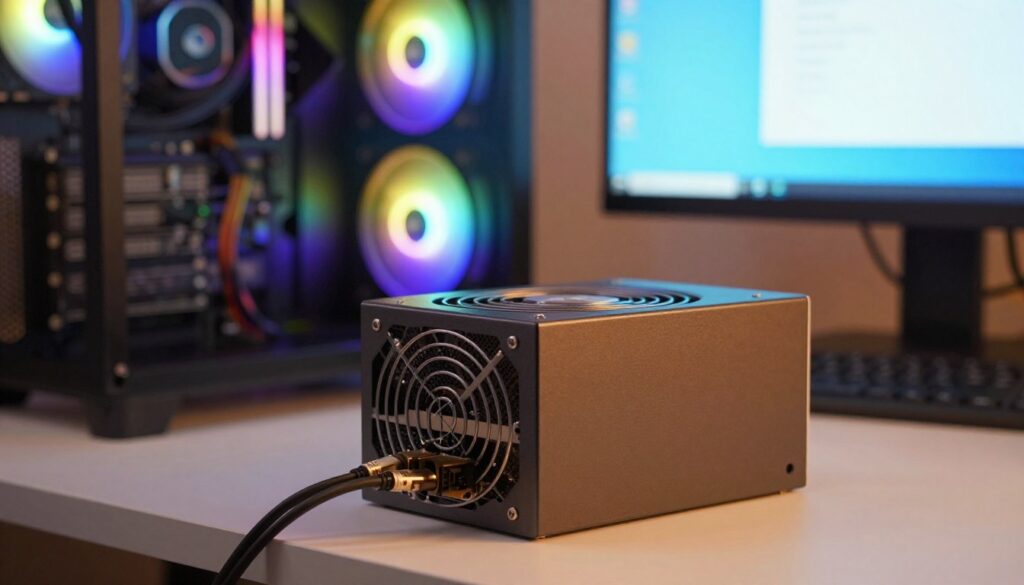
I build and tune gaming PCs, and nothing interrupts a session faster than strange behavior from my case lighting. When my fan LEDs act up, I check the power supply and the hub setup first. A weak supply or poor cable connections often causes a system to lose stable power and makes the RGB behave oddly.
My approach is practical: verify wattage, inspect connectors, and confirm the controller and motherboard settings. I also watch how the load spreads across my fans and devices so I avoid overtaxing a single header or hub.
This intro will walk you through common causes, quick checks, and simple solutions so your LED and fan lights return to normal without guesswork. I rely on clear steps and real-world testing with brands like Corsair and ASUS to keep performance steady.
Key Takeaways
- Start by confirming your power supply can handle total wattage.
- Inspect cables, connectors, and hub load to rule out loose contacts.
- Check controller and motherboard settings before replacing hardware.
- Spread fan and RGB draw across multiple headers to reduce load.
- Use simple tests to isolate whether the issue is power, cabling, or the device.
Identifying Common Causes for Flickering ARGB Lights
I narrow down causes fast by checking the controller, the LED strip, and any obvious physical damage.
In my experience, the most common reasons for malfunctioning lighting are damaged led elements, loose wiring, or a failing controller. These faults cause erratic color behavior, incorrect patterns, or full sections of the rgb led strip to stop responding.
Physical damage often means a broken trace or misaligned leds. A voltage drop across the strip can also cause dim or inconsistent output.
When I troubleshoot, I test in small steps: inspect the strip, swap the controller if possible, and test with a known-good power source. That approach helps me decide whether the problem is hardware, wiring, or a simple reset.
| Symptom | Likely Cause | Quick Check |
|---|---|---|
| Colors wrong or missing | Damaged LED segments | Inspect strip for breaks; test segment with multimeter |
| Intermittent patterns | Loose connector or voltage drop | Reseat connectors; try alternate power header |
| Whole strip unresponsive | Controller failure | Swap controller or reset firmware |
| Dim output | Insufficient power or wiring issue | Check supply wattage and cable continuity |
Inspecting Hardware Connections and Power Supply Load
Before I touch anything inside the case, I make safety my first step.
I switch the computer and the power supply from “I” to “O” and unplug the cord. This removes any chance of shorts while I check connectors and cable routing.
Reseating Controller Cables
I reseat each connector starting at port one and never skip ports. Sequential ports matter; a skipped connector can create an uneven load and cause erratic lighting.
I also split fans between two DLED headers using two controller daughter boards. That spreads the draw and reduces stress on any single supply header.
Testing Individual Fan Units
To isolate a problem, I unplug one fan at a time and power the system back up. If the issue clears, that fan or its cable is the culprit.
- I check cable pins and seating for bent pins or poor contact.
- I confirm wattage on the power supply to ensure the total load is within spec.
- If needed, I move a fan to another header or controller and retest performance.
Thanks to sequential ports and careful checks, I manage the power draw better and avoid repeat issues. This simple troubleshooting saves time and keeps my RGB and led setup stable.
Configuring BIOS Settings for Optimal Lighting Performance
I start in BIOS to confirm my fans and power profiles are set for stable lighting and reliable fan control.
I restart the PC and press Del (or F2) during boot to enter the BIOS. Then I check the motherboard model in Windows System Information so I can pull the manual from the manufacturer’s website.
Adjusting PWM Fan Curves
Set fan headers to PWM in BIOS so the motherboard controls RPM smoothly. I set the case fan profile to PWM and move the curve up near full speed to see if the rgb reacts normally.
If fans don’t appear in BIOS, I inspect connectors and distribution of power across the supply and cables. Uneven load can mimic a hardware problem.
- I verify wattage on the supply and confirm each fan is on the correct header.
- I temporarily set fans to max in BIOS to check for consistent led behavior with higher power draw.
- I save BIOS changes and reboot to confirm stable performance.
| Action | Why it helps | Quick result |
|---|---|---|
| Enter BIOS (Del/F2) | Access fan and power controls | See fan headers and modes |
| Set headers to PWM | Stable RPM, less voltage fluctuation | Improved lighting and fan response |
| Force fans to max | Tests power and load behavior | Confirms if supply/cables cause issues |
| Check motherboard manual | Find correct header mapping | Proper distribution of fans and power |
Troubleshooting Software and Driver Conflicts
When hardware checks clear, I next hunt down driver or software causes that affect my LED behavior.
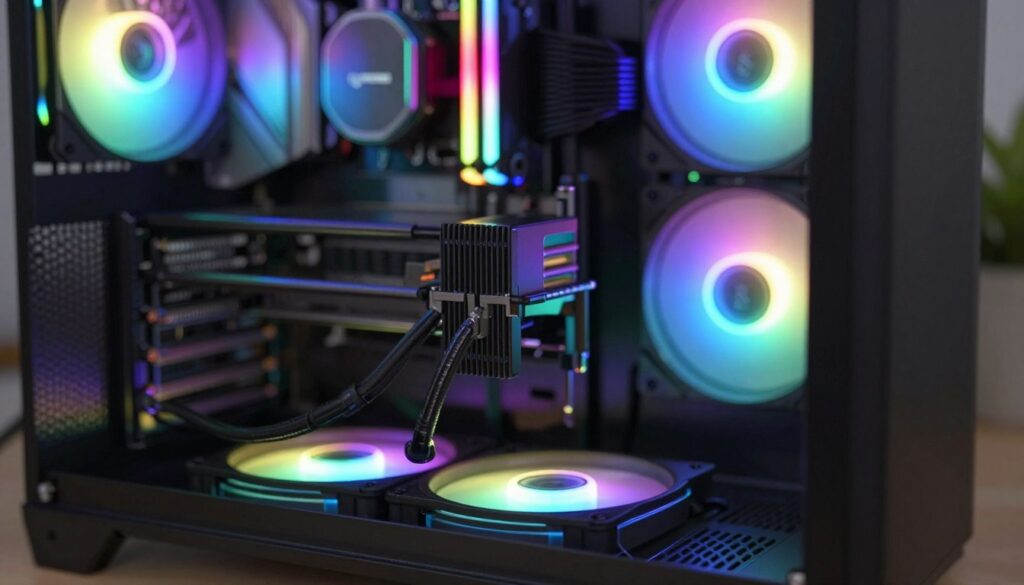
Update keyboard and controller drivers first. I open Device Manager and update keyboard and controller entries. Then I visit the manufacturer’s website and download the latest firmware and driver packages for my controller and keyboard. This often fixes sync and brightness problems with my fan and rgb devices.
I also run the Windows Hardware and Devices troubleshooter to catch hidden device conflicts. To do that I open Command Prompt and run msdt.exe -id DeviceDiagnostic. The wizard finds and repairs issues that prevent proper communication between the controller and the motherboard.
Verifying firmware versions
I check firmware info in the controller app or on the vendor website. I note version numbers and apply updates when available. Updated firmware reduces odd behavior and protects the supply and connected fans from miscommunication.
- I update drivers via Device Manager and then reboot to confirm changes.
- I download firmware from the official website to avoid corrupt files.
- I re-test the system after each change so I can track which update solved the issue.
Tip: Keep a short log of versions and test results so you can reverse updates if a new driver causes problems.
Final Thoughts on Maintaining Your PC Lighting Setup
,Regular inspections of power cables and controller ports stop small issues from becoming big problems.
I keep my power supply and fan headers in check so the system runs at peak performance. I watch wiring and test connections quickly when I notice odd lighting behavior.
Thanks to the HYTE website, I find the right hardware to avoid common causes and save time on repairs. I also make a habit of periodic software and firmware updates to keep my lighting synced and reliable.
When something goes wrong, I start troubleshooting at the power connections. By keeping my setup clean and drivers current, I get steady performance and long-term enjoyment from my build.
FAQ
What should I do first when my ARGB illumination is unstable?
I start by shutting down the PC and unplugging it from power. Then I check every connector between the power supply, controller, and fans. Loose pins or a misaligned header on the motherboard or a separate controller often causes erratic behavior. If everything appears seated, I try a different cable or header to isolate the circuit.
How can I tell if the power supply is causing the issue?
I look for signs of insufficient wattage or an overloaded rail. If multiple devices draw from the same connector, voltage can dip and cause flashes or stutter. I compare my PSU’s rated output to the combined draw of fans, strips, and peripherals. Swapping in a known-good power supply or moving some devices to another rail helps confirm the culprit.
Could a controller or hub be defective, and how do I test it?
Yes. I isolate the controller by disconnecting its inputs and running a single fan or LED strip directly from the motherboard header or another controller. If the problem disappears, the original hub is likely failing. I also inspect the controller for burn marks, swollen components, or loose solder joints.
What role do cable types and connectors play in this problem?
Poor-quality or damaged cables can create intermittent power and signal loss. I use the correct 3-pin or 4-pin connectors for my devices and avoid daisy-chaining too many fans on one cable. Replacing thin or frayed wires with thicker gauge cables often fixes voltage drop and signal distortion.
How do I test individual fan units to find a bad one?
I remove fans one at a time and connect each directly to a working header. That lets me see whether the fan’s RGB or motor causes instability. If a single fan triggers issues on a known-good header, I replace that fan. I also listen for unusual noise and check for uneven spinning that suggests bearing or motor problems.
Should I adjust BIOS settings to improve lighting behavior?
I check the BIOS for fan control and RGB options. Disabling automatic power saving on headers or changing voltage and PWM profiles can stabilize signal timing. I avoid aggressive power-saving modes for headers that drive LEDs, and I update BIOS if the board maker, like ASUS, MSI, or Gigabyte, has a relevant fix.
Can PWM fan curves affect LED performance?
Yes. Rapid changes in PWM can change current draw and interfere with LED drivers. I smooth aggressive fan curves and set minimum duty cycles so the header supplies steady voltage. That reduces flicker caused by rapid load swings when fans speed up or down.
Which software conflicts commonly cause lighting problems?
Multiple RGB suites running together—for example, Corsair iCUE and ASUS Aura—can fight over a device and produce erratic effects. I keep only one controller app active for a given device, disable auto-start for the others, and use vendor-approved plugins when necessary.
How important are driver and firmware updates for controllers and keyboards?
They matter a lot. I update motherboard chipset drivers, USB controllers, and any firmware for hubs or keyboards. Manufacturers such as Corsair, Cooler Master, and NZXT release patches that fix timing and compatibility issues. I back up profiles before updating and follow the vendor’s install instructions.
Should I run Windows troubleshooters for hardware issues?
I run built-in hardware and devices troubleshooters to detect USB or driver problems that might affect lighting controllers. While they don’t always pinpoint LED issues, they help identify faulty drivers or device errors so I can reinstall or update them.
How do I verify firmware versions on my lighting devices?
I open the vendor’s utility—Corsair iCUE, MSI Dragon Center, or Gigabyte RGB Fusion—and check each device’s firmware status. If an update is available, I follow the app’s prompt to flash it. I ensure the PC won’t lose power during the update to avoid bricking a controller.
Can USB hubs or front-panel connectors cause power delivery problems?
Yes. I avoid routing high-draw RGB controllers through low-power USB hubs or front-panel headers that can’t supply steady current. If necessary, I connect a controller directly to the motherboard’s internal header or to a powered USB port on the back I/O panel.
What are safe troubleshooting steps if I suspect voltage drop across cables?
I measure voltage with a multimeter under load, check for heat at connectors, and replace thin wires with thicker gauge ones. I also shorten cable runs and distribute devices across multiple headers or rails to reduce overall resistance and improve stability.
Are there preventative steps to keep my setup stable long-term?
I schedule periodic inspections of connectors and cables, keep firmware and drivers current, and avoid overcrowding a single hub. Using quality components from reputable brands and ensuring adequate PSU capacity go a long way toward steady performance.
When should I contact the manufacturer or seek warranty support?
If I isolate the issue to a specific controller, fan, or strip and it still misbehaves on a known-good system, I contact the maker’s support. I gather system specs, firmware versions, and photos of the connections to speed up the warranty or RMA process.

Adrian Voss is an RGB lighting specialist and tech writer focused on customization, performance, and smart lighting systems. He shares hands-on insights, reviews, and setup guides to help users take full control of their RGB controllers and create immersive, personalized environments.